R quickstart
In this quick start guide, we will write our first script in R.
Scripts are the basic building blocks in Windmill. They can be run and scheduled as standalone, chained together to create Flows or displayed with a personalized User Interface as Apps.
Scripts consist of 2 parts:
- Code: for R scripts, they must have a
mainfunction defined asmain <- function(...). - Settings: settings & metadata about the Script such as its path, summary, description, jsonschema of its inputs (inferred from its signature).
When stored in a code repository, these 2 parts are stored separately at <path>.r and <path>.script.yaml
Windmill automatically manages dependencies for you.
When you use packages in your R script through library() or require() calls,
Windmill parses these dependencies upon saving the script and automatically resolves versions from CRAN,
ensuring that the same version of the script is always executed with the same versions of its dependencies.
This is a simple example of a script built in R with Windmill:
library(httr)
library(jsonlite)

main <- function(url = "https://httpbin.org/get", message = "Hello from Windmill!") {
  response <- GET(url, query = list(message = message))

  list(
    status = status_code(response),
    body = content(response, as = "parsed"),
    message = "Request completed successfully"
  )
}
In this quick start guide, we'll create a script that greets the operator running it.
From the Home page, click New and select Script. This will take you to the first step of script creation: Metadata.
Settings
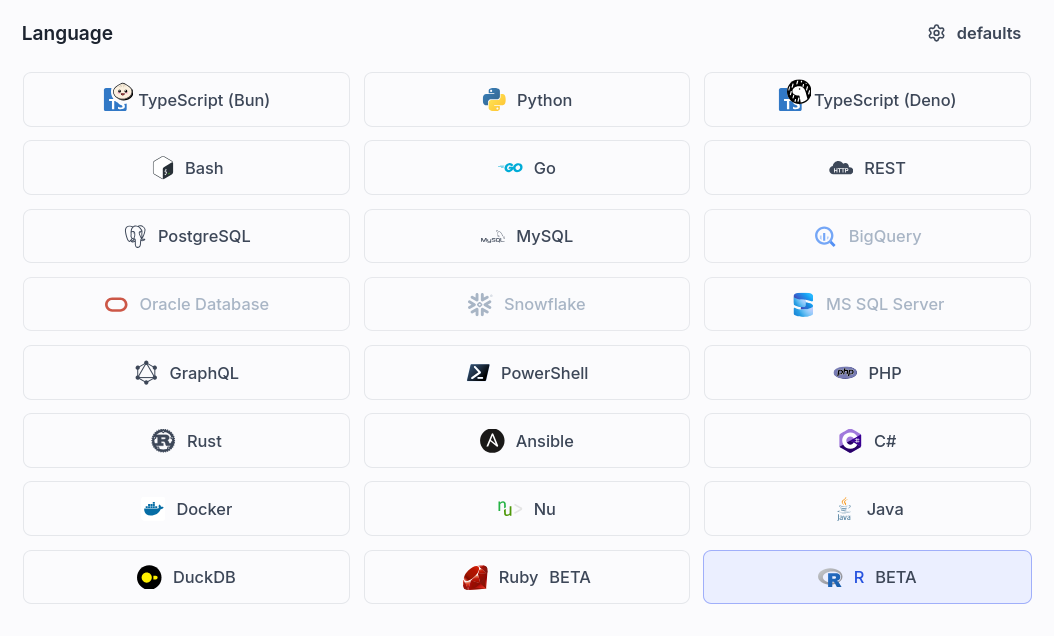
As part of the settings menu, each script has metadata associated with it, enabling it to be defined and configured in depth.
- Path is the Script's unique identifier that consists of the script's owner, and the script's name. The owner can be either a user, or a group (folder).
- Summary (optional) is a short, human-readable summary of the Script. It
will be displayed as a title across Windmill. If omitted, the UI will use the
pathby default. - Language of the script.
- Description is where you can give instructions through the auto-generated UI to users on how to run your Script. It supports markdown.
- Script kind: Action (by default), Trigger, Approval or Error handler. This acts as a tag to filter appropriate scripts from the flow editor.
This menu also has additional settings on Runtime, Generated UI and Triggers.
Now click on the code editor on the left side, and let's build our Hello World!
Code
Windmill provides an online editor to work on your Scripts. The left-side is the editor itself. The right-side previews the UI that Windmill will generate from the Script's signature - this will be visible to the users of the Script. You can preview that UI, provide input values, and test your script there.
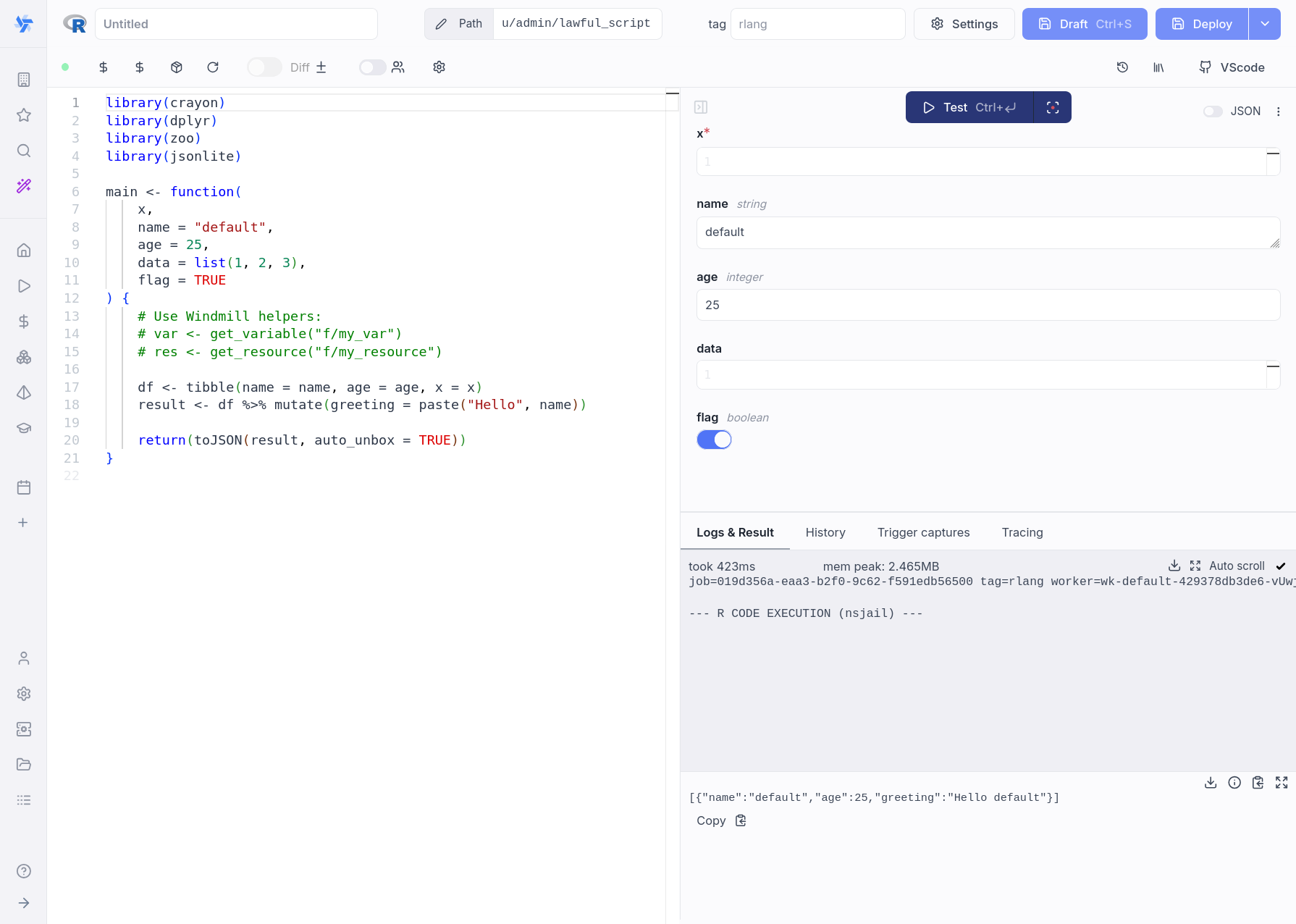
As we picked R for this example, Windmill provided some R
boilerplate. Let's take a look:
library(crayon)
library(dplyr)
library(zoo)
library(jsonlite)

main <- function(
  x,
  name = "default",
  age = 25,
  data = list(1, 2, 3),
  flag = TRUE
) {
  # Use Windmill helpers:
  # var <- get_variable("f/my_var")
  # res <- get_resource("f/my_resource")

  df <- tibble(name = name, age = age, x = x)
  result <- df %>% mutate(greeting = paste("Hello", name))

  return(toJSON(result, auto_unbox = TRUE))
}
In Windmill, R scripts must have a main function defined as main <- function(...) that will be the script's
entrypoint. There are a few important things to note about the main function:
- The main arguments are used for generating
- the input spec of the Script
- the frontend that you see when running the Script as a standalone app.
- Default values are used to infer argument types and generate the UI form. String defaults create string inputs, numeric defaults create number inputs, list/vector defaults create appropriate JSON inputs, etc.
- You can customize the UI in later steps (but not change the input type!).
Back to our Hello World. We can clean up the boilerplate, change the
main to take in the user's name. Let's also return the name, maybe we can use
this later if we use this Script within a flow or app and need to pass its result on.
main <- function(name = "World") {
  print(paste("Hello", name, "! Greetings from R!"))
  name
}
Accessing variables and resources
R scripts can access Windmill variables and resources using built-in helper functions:
library(httr)
library(jsonlite)

main <- function() {
  # Get a variable
  secret <- get_variable("f/examples/secret")

  # Get a resource (returns a list/object)
  db_config <- get_resource("f/examples/postgres")

  # Access context variables from environment
  user <- Sys.getenv("WM_USERNAME")
  workspace <- Sys.getenv("WM_WORKSPACE")

  list(
    secret = secret,
    db_host = db_config$host,
    user = user,
    workspace = workspace
  )
}
Instant preview & testing
Look at the UI preview on the right: it was updated to match the input
signature. Run a test (Ctrl + Enter) to verify everything works.
You can change how the UI behaves by changing the main signature. For example,
if you remove the default for the name argument, the UI will consider this field
as required.
main <- function(name)
Now let's go to the last step: the "Generated UI" settings.
Generated UI
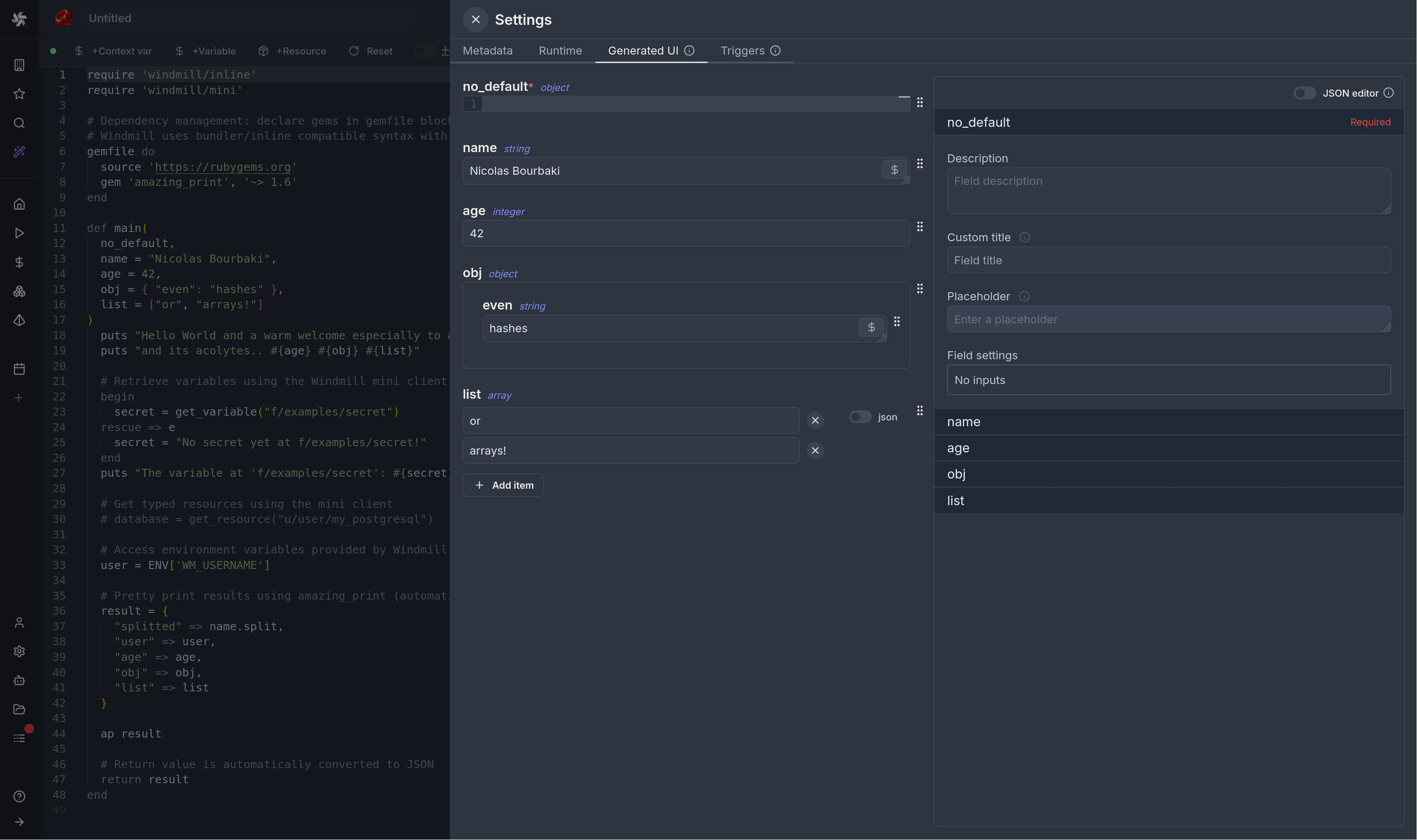
From the Settings menu, the "Generated UI" tab lets you customize the script's arguments.
The UI is generated from the Script's main function signature, but you can add additional constraints here. For example, we could use the Customize property: add a regex by clicking on Pattern to make sure users are providing a name with only alphanumeric characters: ^[A-Za-z0-9]+$. Let's still allow numbers in case you are some tech billionaire's kid.
Run!
We're done! Now let's look at what users of the script will do. Click on the Deploy button to load the script. You'll see the user input form we defined earlier.
Note that Scripts are versioned in Windmill, and each script version is uniquely identified by a hash.
Fill in the input field, then hit "Run". You should see a run view, as well as your logs. All script runs are also available in the Runs menu on the left.
You can also choose to run the script from the CLI with the pre-made Command-line interface call.
Dependencies management
R dependencies are automatically detected from library() and require() calls in your script. Windmill resolves package versions from CRAN:
library(httr)
library(jsonlite)
library(dplyr)
library(ggplot2)

main <- function(data_url = "https://example.com/data.csv") {
  # Use httr for HTTP requests
  response <- GET(data_url)

  # Parse JSON responses
  data <- fromJSON(content(response, as = "text"))

  # Use dplyr for data manipulation
  result <- data %>%
    filter(!is.na(value)) %>%
    summarise(mean_value = mean(value))

  result
}
Windmill will automatically:
- Parse your
library()andrequire()calls when you save the script - Resolve versions from CRAN (with 3-day TTL caching for lockfiles)
- Install packages to a shared cache directory
- Cache dependencies for faster execution
Verbose mode
By default, renv output is suppressed during package installation. To enable verbose output for debugging, add a #verbose annotation at the top of your script:
#verbose

library(httr)
library(jsonlite)

main <- function() {
  # Your code here
}
Caching
Every R package dependency is cached on disk by default. Furthermore if you use the Distributed cache storage, it will be available to every other worker, allowing fast startup for every worker.
What's next?
This script is a minimal working example, but there's a few more steps that can be useful in a real-world use case:
- Pass variables and secrets to a script.
- Connect to resources.
- Trigger that script in many ways.
- Compose scripts in Flows, low-code apps or full-code apps.
- You can share your scripts with the community on Windmill Hub. Once submitted, they will be verified by moderators before becoming available to everyone right within Windmill.
Scripts are immutable and there is a hash for each deployment of a given script. Scripts are never overwritten and referring to a script by path is referring to the latest deployed hash at that path.
For each script, a UI is autogenerated from the jsonschema inferred from the script signature, and can be customized further as standalone or embedded into rich UIs using the App builder.
In addition to the UI, sync and async webhooks are generated for each deployment.