Labels
Labels are free-form tags that you can attach to any item in a workspace to organize, group, and filter them. Labels are purely informational — they do not affect execution — but they propagate to jobs at runtime so you can trace a job back to the labels on its source script or flow.
Labels are supported on:
- Scripts
- Flows
- Apps (including raw/full-code apps)
- Resources
- Variables
- Schedules
- Triggers (all trigger types: HTTP routes, webhooks, websocket, Kafka, NATS, MQTT, SQS, GCP, Postgres)
Adding labels
Every editor and creation drawer includes a Labels input where you can type or paste labels. Labels are free-form strings — you can create a new label by typing it and pressing Enter, or pick an existing label from the autocomplete dropdown.
The autocomplete is powered by the /labels/list endpoint, which returns all labels that already exist in the workspace across every item type. This makes it easy to reuse the same label vocabulary across scripts, flows, resources, and triggers without having to remember exact spellings.
You can edit the labels of an existing item at any time from its editor — changes are saved with the next deploy/save action.
Label badges on list pages
Items that have labels display their labels as small blue badges on every list page (Scripts, Flows, Apps, Resources, Variables, Schedules, Triggers, and the home page). Each badge shows the label text prefixed with a tag icon, and hovering reveals a Label: X tooltip.
When an item has more labels than fit inline, a +N badge is rendered. Hovering +N shows the remaining labels.
Clickable badges to filter
Clicking any badge toggles that label as a filter on the current list view. Click again to remove it. This makes it trivial to jump from a single item's badge to the full list of items sharing that label.
Filtering by label
All list endpoints and list pages accept a label query parameter:
GET /api/w/{workspace}/scripts/list?label=production
Multi-label filtering
The label query parameter accepts a comma-separated list of labels. The filter is inclusive — items matching any of the labels are returned:
GET /api/w/{workspace}/flows/list?label=production,critical
In the UI, clicking multiple label badges or selecting multiple labels from the filter dropdown appends them to the filter as a comma-separated value.
Filter presets
The search bar on Resources, Variables, and Schedules pages (and Folders) surfaces label presets: the most common labels already present in the loaded items appear as one-click filter presets. Selecting a preset appends it to the current label filter.
Presets that are already active in the current filter are hidden so the suggestions stay fresh.
The /labels/list endpoint
Windmill exposes an autocomplete endpoint that returns every distinct label currently used in the workspace:
GET /api/w/{workspace}/labels/list
This endpoint aggregates labels across all item types (scripts, flows, apps, resources, variables, schedules, triggers) and returns the union as a sorted list. The Labels input in every editor consumes this endpoint to power its dropdown.
Propagation to jobs
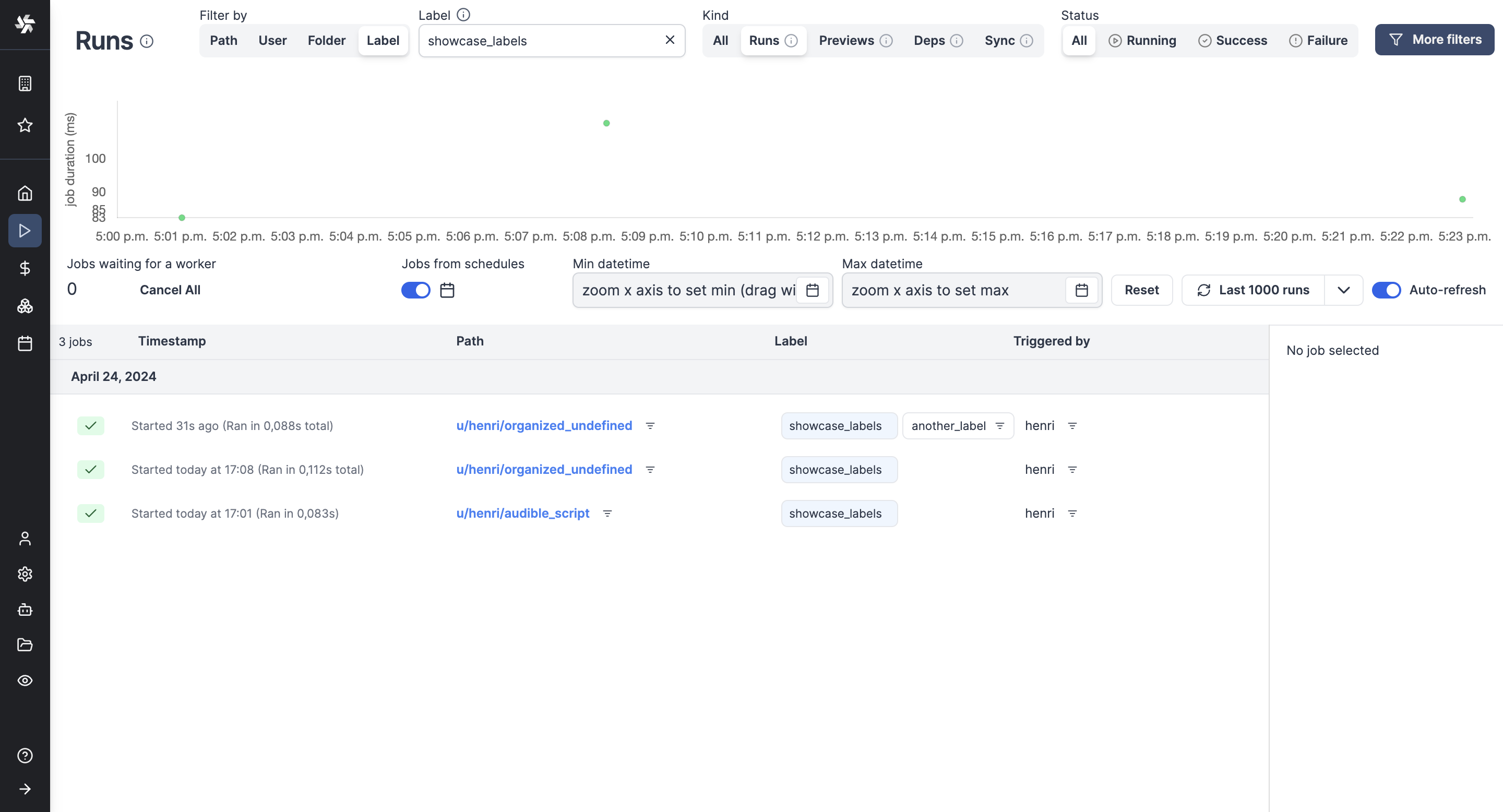
When a script or flow is executed, its labels are merged into the job's labels at dispatch time. The job's labels column on v2_job contains the union of:
- The labels of the script/flow being run
- Any
wm_labelsreturned by the script's main function (see Jobs labels)
This means filtering jobs by label on the Runs page will match jobs whose underlying script/flow had a given label, even if the script itself did not emit wm_labels. The Runs page label filter supports wildcards (*) and comma-separated multi-label filtering.