UI editor
Full-code apps can be created and edited directly in the Windmill web interface, without using the Windmill CLI.
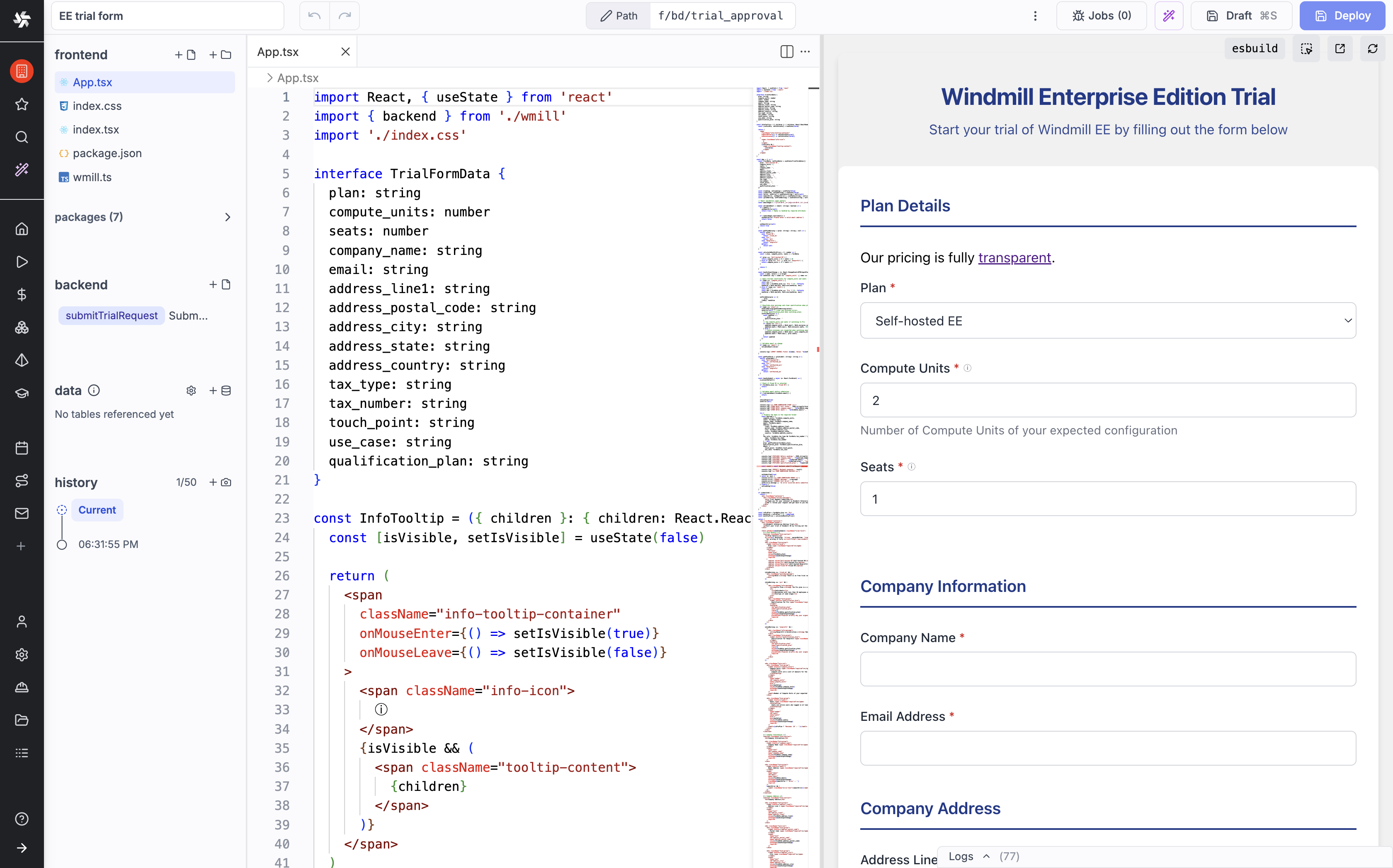
Overview
The in-browser editor provides:
- File tree: navigate and manage frontend files
- Code editor: edit frontend and backend code with syntax highlighting
- Runnables panel: create, edit and configure backend runnables from a sidebar
- Data table configuration: whitelist data tables from the UI
- Preview: test your app without deploying
Creating a full-code app
From your Windmill home page:
- Click New and select App (full-code) to start from scratch, then choose your framework (React or Svelte).
- To start from an existing project instead, hover App (full-code) in the New popover and click Import full-code app, then paste your YAML or JSON export in the drawer.
Editing frontend files
The file tree on the left shows all frontend files. Click a file to open it in the code editor. You can:
- Create new files and folders
- Rename and delete files
- Edit code with syntax highlighting and autocompletion
Managing backend runnables
The runnables panel on the right lists all backend runnables. From here you can:
- Add new inline scripts in any supported language
- Reference existing workspace scripts or flows
- Configure static input fields
- View and edit runnable code
Data table configuration
Configure which data tables your app can access:
- Open the data configuration panel
- Select a datatable from your workspace
- Whitelist specific tables
- Optionally set a schema name
Preview and testing
Click the preview button to test your app in the browser. The preview runs your bundled frontend code and connects to Windmill's backend for runnable execution.
In an AI session, the AI can read the preview's rendered DOM, console logs and job runs to debug the app, and you can click elements in the preview to attach them to your chat message. The AI can also capture the preview with its take_screenshot tool (Google Chrome only), and you can drag screenshots into the chat as image attachments.
When to use the UI editor vs CLI
| Scenario | Recommended |
|---|---|
| Quick edits to an existing app | UI editor |
| New app from scratch | CLI (wmill app new) |
| Complex frontend with many dependencies | CLI (wmill app dev) |
| Team collaboration with git | CLI + git sync |