Integration triggers
Integration triggers allow external services to push events directly to Windmill and trigger scripts and flows. Unlike scheduled polls, integration triggers receive real-time push notifications from the external service via webhooks, so your runnables execute as soon as events occur.
Currently supported services:
- Nextcloud - file, folder, and calendar change events
- Google - drive and calendar change events
- GitHub - repository events such as pushes, pull requests, issues and releases
How it works
Integration triggers use OAuth to authenticate with the external service. Each trigger registers a webhook or watch channel on the external service, which sends notifications to Windmill when events occur. Windmill then executes the configured script or flow with the event data.
Each trigger acts as one connected account of the service, its connection: the webhook is registered under that account, and the trigger only sees what that account can access.
The general setup follows two steps:
- Configure the OAuth app of the service in workspace settings (an admin does this once, unless the instance shares one)
- Create a trigger on a script or flow, picking the account it acts as and configuring which events to watch
Setup
Workspace integration
A workspace admin configures the OAuth app of each service in Workspace settings > Integrations > Integration triggers, by providing the OAuth client ID and client secret. The same page holds the shared account of each service.
For Google, the OAuth scopes used are:
https://www.googleapis.com/auth/drive.readonlyhttps://www.googleapis.com/auth/calendar.readonlyhttps://www.googleapis.com/auth/calendar.events
A broader scope covers a narrower one with the same prefix: https://www.googleapis.com/auth/drive covers drive.readonly, and https://www.googleapis.com/auth/calendar covers calendar.readonly and calendar.events.
For GitHub, the OAuth scope used is repo.
A superadmin can share the instance-level Google, GitHub and Nextcloud OAuth apps.
A workspace that configures no OAuth app of its own then uses the instance's, without its credentials being exposed to workspace admins.
Connecting through an instance app redirects to <base_url>/oauth/callback/<resource_type> (gworkspace, github or nextcloud), the same URI as connecting a resource, so register it on the app.
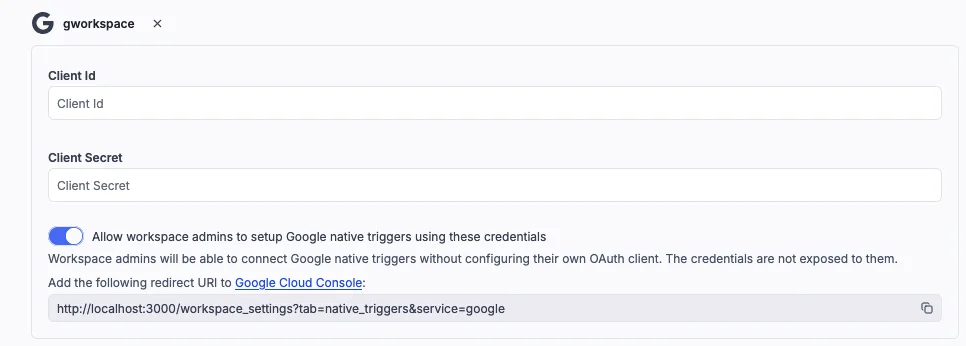
For a workspace Nextcloud OAuth app, you also need to provide the base URL of your Nextcloud instance.
Connections
A connection is any OAuth resource of the service's type (nextcloud, gworkspace or github) and its token variable, whether it was connected from the trigger editor or from Resources for your scripts.
Its token is refreshed automatically, and scripts can use the resource to call the service API as the same account as the trigger.
Members whose workspace role can both write code and manage triggers connect their own account in the trigger editor, with Connect a GitHub account (or Google, Nextcloud). Using a connection requires read access to its token variable: to let others use an account you connected, save it in a folder they can read or share its variable with them. Disconnecting an account deletes every trigger that uses it, including other members'.
Share an account with the workspace
An admin can pick one connection per service as the Shared account, in the service's card in workspace settings. Members can then create and edit triggers that act as it without being able to read its token.
Only Nextcloud admins can register webhooks, so Nextcloud triggers need a Nextcloud admin account: share one with the workspace so every member can create them.
Create a trigger
Once the service has an OAuth app, from the workspace integration or the instance:
- In the script or flow's Triggers tab, click Add trigger and pick the service
- Under GitHub account (or Google, Nextcloud), pick the connection the trigger acts as
- Configure the service-specific options (see sections below)
- Save the trigger
You can also click New trigger on the service's page in the sidebar, then select the script or flow.
Nextcloud triggers
First of all make sure the Nextcloud OAuth app is available, from the workspace integration or the instance.
Nextcloud integration triggers watch for file, folder, and calendar changes on a Nextcloud instance and trigger a script or flow when events occur.
Prerequisites
- Nextcloud 33 or later
- The Windmill integration app installed on your Nextcloud instance
- Pretty URLs enabled on your Nextcloud instance
Configuration
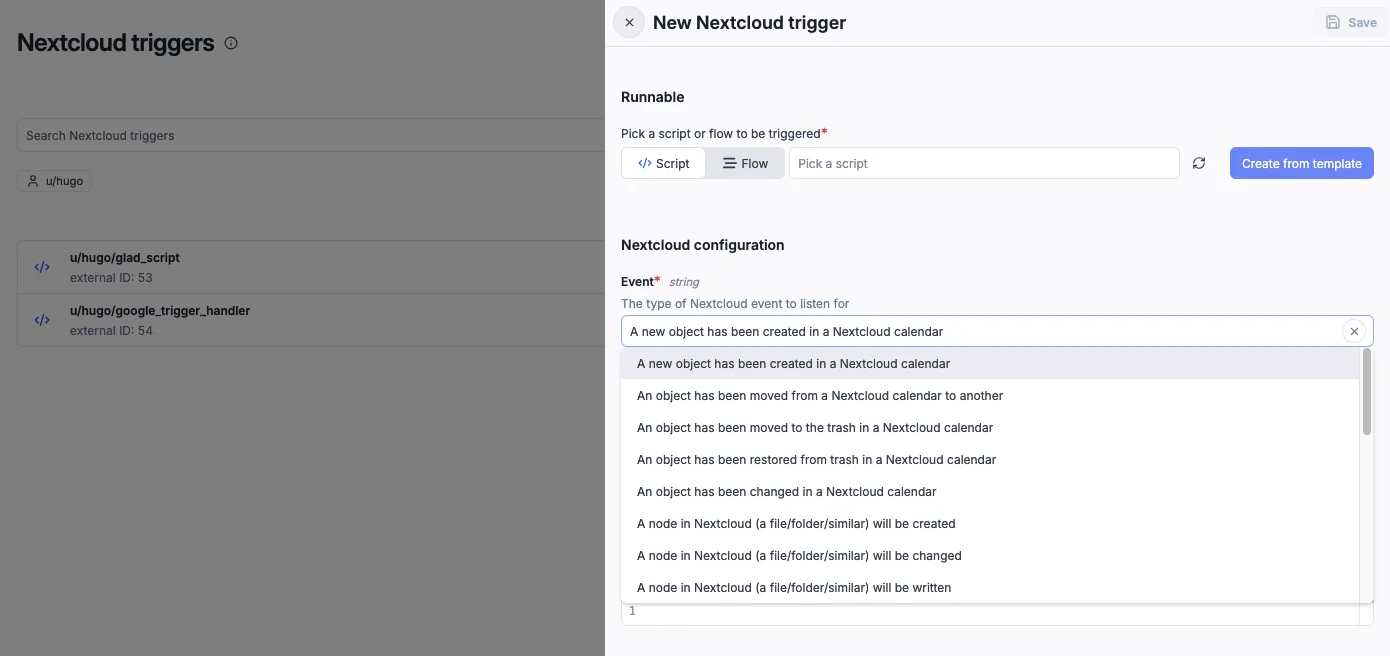
When creating a Nextcloud trigger, pick a script or flow (or use Create from template), then configure:
- Event - select the event type to listen for. Available events include:
- Calendar events: object created, moved, trashed, restored, or changed in a Nextcloud calendar
- File/folder events: node created, changed, or written
Event payload
Nextcloud sends the full event data to your script. The payload includes the authenticated user, a timestamp, and the event details:
export async function main(
  authentication: {
    owner: RT.Nextcloud;
    trigger: RT.Nextcloud;
  },
  user: {
    uid: string;
    displayName: string;
  },
  time: number,
  event: any
) {
  // event contains the Nextcloud event details (file, folder, or calendar object)
}
Google triggers
First of all make sure the Google OAuth app is available, from the workspace integration or the instance.
Google integration triggers watch for changes in Google Drive or Google Calendar and trigger a script or flow when events occur.
Prerequisites
- A Google Cloud project with the relevant API enabled (Drive API, Calendar API, or both)
- OAuth 2.0 credentials (client ID and client secret) configured with the appropriate scopes
Neither is needed when the workspace uses the instance's shared Google OAuth app.
Configuration
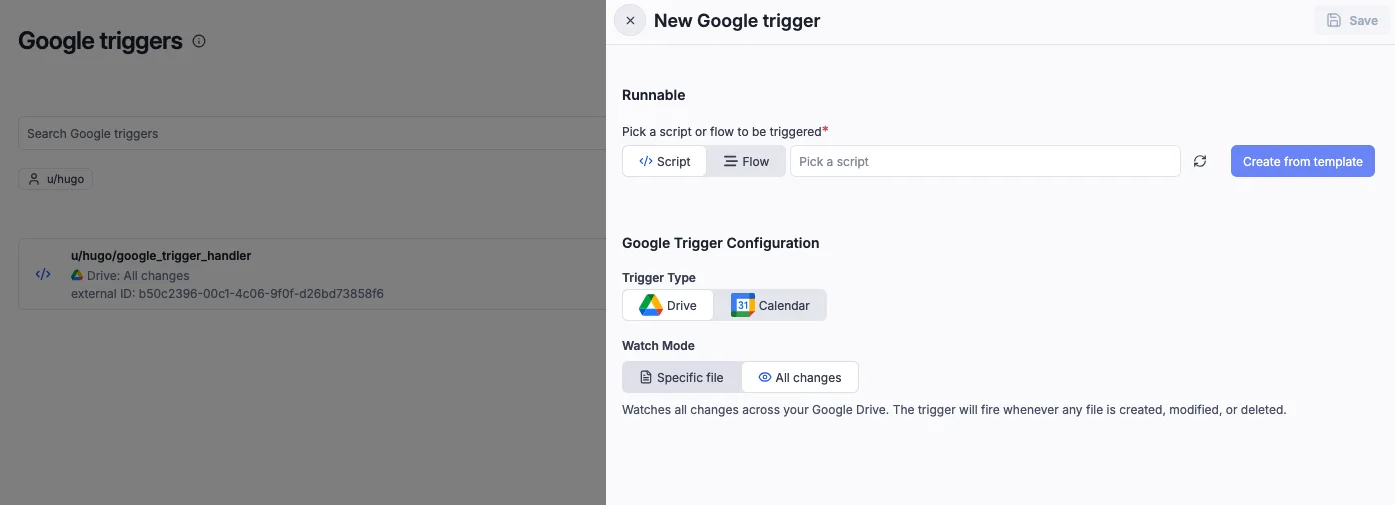
When creating a Google trigger, pick a script or flow (or use Create from template), then configure:
- Trigger Type - choose between Drive and Calendar
- Watch Mode (Drive only) - choose between:
- Specific file - watch a single file or folder from My Drive, Shared with me, or Shared drives
- All changes - watch all changes across your Google Drive (fires whenever any file is created, modified, or deleted)
- Calendar (Calendar only) - select a calendar from your Google account to watch for event changes
Both use push notifications via Google watch channels. Windmill automatically renews channels before they expire. The expiration period differs by service: 24 hours for Drive, 7 days for Calendar.
Event payload
Google push notifications only contain metadata about the change, not the full event details. To get the actual content of the change, use the gworkspace resource of the trigger's connection to query the Google API.
type GoogleTriggerPayload = {
  channel_id: string;
  resource_id: string;
  resource_state: string; // "sync" | "exists" | "not_exists" | "update"
  resource_uri: string;
  message_number: string;
  channel_expiration: string;
  channel_token: string; // custom token set when creating the watch
  changed: string; // Drive-only: comma-separated list (e.g. "content,properties,permissions")
};

export async function main(payload: GoogleTriggerPayload) {
  // Use the gworkspace resource to query the Google API for full details
}
Use the Google native trigger template script (also available from the UI when creating a trigger) as a starting point.
GitHub triggers
First of all make sure the GitHub OAuth app is available, from the workspace integration or the instance.
GitHub integration triggers register a webhook on a GitHub repository and trigger a script or flow when the selected events occur. Registering a webhook requires admin rights on the repository for the trigger's account.
Configuration
When creating a GitHub trigger, pick a script or flow, then configure:
- Repository - a repository the trigger's account can access
- Events - the repository events to receive (push, pull request, issues, release, workflow run and more)
Event payload
The script receives the event name from the X-GitHub-Event header, the delivery ID, and the webhook payload sent by GitHub:
export async function main(
  event: string, // e.g. "push", "pull_request"
  delivery_id: string,
  payload: any
) {
  // payload is the GitHub webhook payload for this event
}