Approve workflow steps from Microsoft Teams
A Windmill flow can stop before a sensitive step and post an approval card to a Microsoft Teams channel. Approvers read the request in Teams and approve or reject it from the card, optionally filling in a form. The flow then continues with the next step, for example a PowerShell script, or is canceled.
This guide builds a flow that disables an Active Directory account once someone approves it in Teams.
Approval cards are posted by the Windmill Teams bot, which is an Enterprise Edition feature. Windmill Cloud workspaces connect to Teams from their settings, and self-hosted instances need an Enterprise license.
Before you start
- Connect the workspace to Microsoft Teams: as a workspace admin, open the workspace settings, go to the
Slack / Teamstab, then theTeamssub-tab, pick a team and clickConnect to Teams. The button stays disabled until a team is picked. See Microsoft Teams integration. - On a self-hosted instance, register the Teams bot with a Microsoft Entra app first, as described in Microsoft Teams setup.
- Install the Windmill Teams app in the team that will receive the approval cards. If cards are not delivered, see Troubleshooting.
Build the flow
From the Home page, click New and select Flow, then add a flow input SamAccountName (string).
The flow has two steps:
a: an approval step that posts the card to Teams.b: a PowerShell script that disables the account.
Add the approval step
Add a step and pick Approval/Prompt.
This creates a step with Suspend until approval/resume enabled: the flow runs the step, then waits for an approval before the next step.
Write it in TypeScript, with samAccountName connected to flow_input.SamAccountName:
import * as wmill from 'windmill-client';

export async function main(samAccountName: string) {
	await wmill.requestInteractiveTeamsApproval({
		teamName: 'IT Operations',
		channelName: 'Approvals',
		message: `Disable the Active Directory account ${samAccountName}?`
	});
}
teamName and channelName are the display names of the team and the channel.
Windmill looks them up through Microsoft Graph, and the step fails with Team '...' not found or Channel '...' not found in team if there is no match.
requestInteractiveTeamsApproval only works inside a flow, as a flow step: run it from a flow preview or a deployed flow, not from the script editor or a test of the step alone.
It is available in the TypeScript client, so write the approval step in TypeScript, and the other steps in any language.
For the helper's other parameters, see Microsoft Teams approval step.
Add a form to the card
To collect information with the approval, open the approval step's Run settings, then Suspend until approval/resume, select the Form tab, click Add a form and add the fields.
In this example, add a string field Reason.
Forms on approval steps are a Cloud and Enterprise Self-Hosted feature.
The card shows boolean, string and number fields; see which fields the card shows.
Add the PowerShell step
Add the PowerShell script as step b, with SamAccountName connected to flow_input.SamAccountName and Reason connected to resume.Reason, the value entered in the form.
param(
    [Parameter(Mandatory)]
    [string]$SamAccountName,

    [string]$Domain = 'corp.contoso.com',

    [string]$Reason
)

Import-Module ActiveDirectory

Disable-ADAccount -Identity $SamAccountName -Server $Domain
if ($Reason) {
    Set-ADUser -Identity $SamAccountName -Server $Domain -Description "Disabled: $Reason"
}
Write-Output "Disabled $SamAccountName"
The Active Directory cmdlets need a domain-joined Windows worker (Self-Hosted Enterprise) with the ActiveDirectory module installed.
Give this step a worker group tag that only that worker listens to.
Any other step can be approved the same way, for example a scheduled PowerShell script.
What approvers see
When the flow reaches step a, the bot posts a card to the channel with your message, a link to the approval page in Windmill, the form fields and buttons to approve or reject.
Its wording follows the approval step's skin.
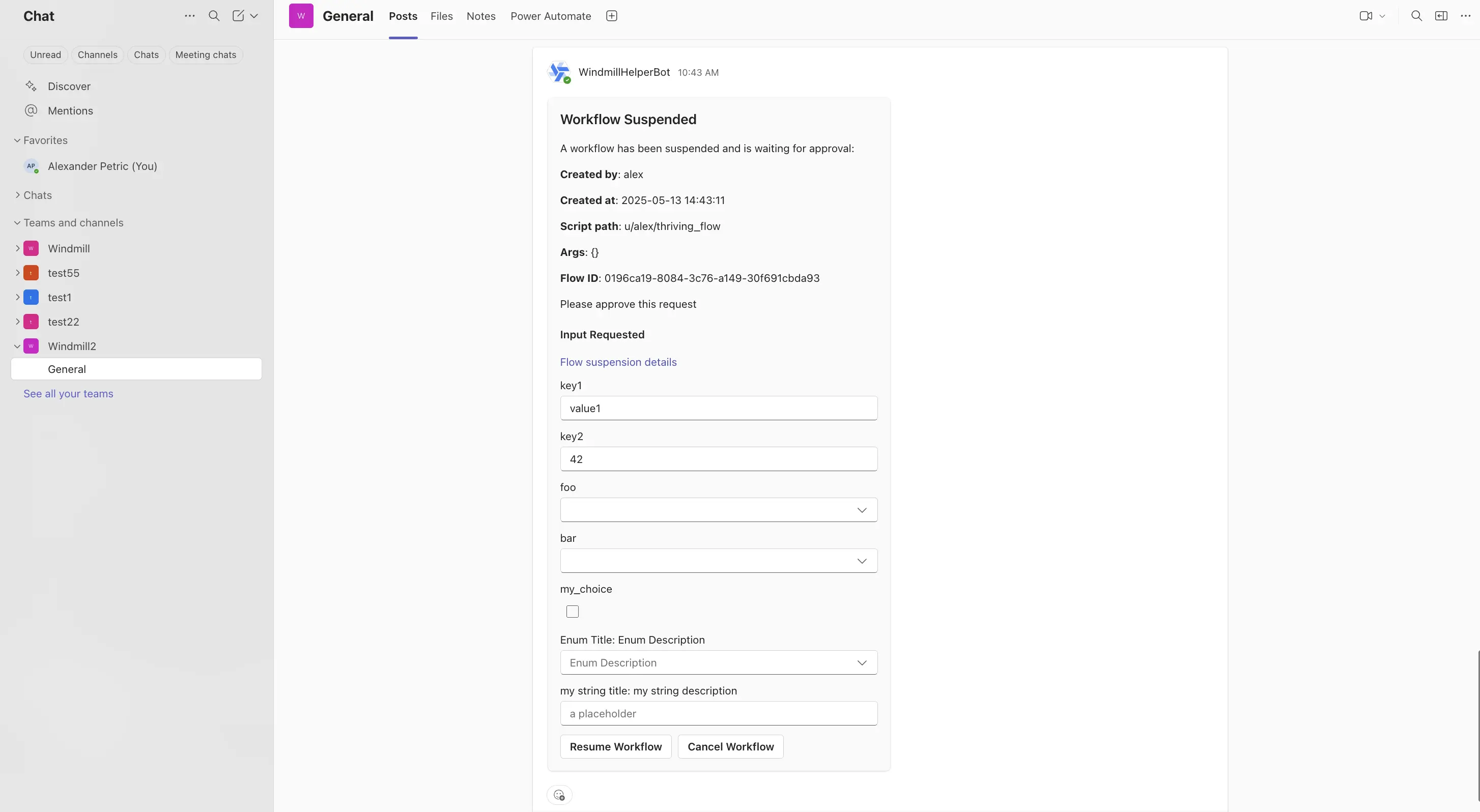
Approving resumes the flow with the form values, and step b runs.
Rejecting cancels the flow, unless the step is set to continue on disapproval.
If nobody answers before the step's timeout, the flow is canceled.
A new approval step starts with a 30-minute timeout, and a step with no timeout also times out after 30 minutes.
Who can approve
The card's buttons resume the flow through the step's secret resume URL, so anyone who can see the card in the channel can approve or reject it. The step's permission options, such as requiring approvers to be logged in or to be members of a group, are not checked for the card's buttons. Post the card to a channel whose members are allowed to approve. See Permissions.