AI sessions
AI sessions are full-page environments for building with the Windmill AI chat. Each session ties an AI chat to a workspace or workspace fork and pairs it with a live preview panel: the AI creates and edits scripts, flows and full-code apps as drafts, you watch the result take shape next to the conversation, then review the diff and deploy when you are satisfied.
You can run many sessions in parallel, each in its own workspace or fork, and switch between them from the sessions sidebar.
AI sessions are enabled by default and replace the AI chat side panel as the default chat experience. Members whose role cannot write code do not have access to sessions and keep the side panel chat. A workspace admin can hide AI sessions for a whole workspace.
For an overview of AI sessions, watch the big picture:
Starting a session
Switch to the sessions view from the toggle at the top of the left navigation, then click the new session button. A session starts as a draft: you can pick where it will run, open preview tabs and type a prompt before anything is created. Drafts persist in your browser, so you can prepare several sessions in parallel and come back to them later.
Before the first message, the "Acting on" picker lets you choose where the session operates:
- The workspace you are currently in (the default).
- Another workspace of the same family.
- A new fork of the workspace. The fork is only created when you send your first message, so abandoning a draft session never leaves an empty fork behind.
If you are in a production workspace that is locked against direct deployment, new sessions steer to its dev workspace instead, since a session could not edit anything in the locked workspace. Once the first message is sent, the session's workspace is committed and cannot change.
You can also start a session from the item you are working on: script, flow and full-code app editors have an "Open in AI session" button that creates a session with that item already open in the preview panel.

Sessions sidebar
The sidebar lists your sessions grouped by workspace family, meaning a root workspace together with its forks. It only shows sessions from the family of the workspace you are in; a filter lets you widen the list to all workspaces. Sessions display an unread badge when the AI finished a turn you have not seen, and a draft cue when a session holds typed but unsent text.
Sessions running on a fork are marked with a fork icon. From the sidebar you can rename, archive or delete a session.
Working with the AI
The session chat is the Windmill AI chat in its global mode, operating on the session's workspace. It can:
- Create and edit scripts, flows and full-code apps. Changes are saved as your own drafts in the session's workspace, never deployed directly.
- Test what it builds by running scripts, flow previews and individual steps as background jobs, through an argument form you confirm.
- Open workspace pages for you in the preview panel: runs, schedules, variables, resources, assets, audit logs, triggers or workspace settings, with filters already applied (for example, the runs page filtered to a specific script). Pages the AI can open follow your permissions.
- Answer questions about your workspace and about Windmill itself, with the same capabilities as the AI chat elsewhere (web search, Mermaid diagrams, API operations).
- Write longer documents as artifacts instead of burying them in the conversation.
Data pipelines are in alpha and cannot be built from a session chat yet: ask for one and the chat says so. The full-page pipeline editor and its own chat are unaffected.
Sessions are the in-app counterpart to the Model Context Protocol (MCP): both let an AI operate your workspace, sessions from within Windmill with a live preview and deploy flow, MCP from an external AI client such as your IDE or desktop assistant.
The tokens a session spends are recorded per user and model, and priced in the workspace and user settings: see AI usage and cost.
Attachments
You can attach images and text files to a message by dragging, pasting or picking files: useful to share a design, an error screenshot, a log file or a whiteboard photo. Images require a model with vision support and are downscaled client-side; up to 8 images can be attached per message. Text files (up to 8 per message, 1 MB each) are read by the AI on demand rather than inlined, so they never bloat the conversation history; see attaching files. A message can also consist of attachments alone, with no text. You can also link files and folders to the conversation so the AI keeps them in context for the whole session; what is linked, and whether the AI can actually read it, is listed under Files & folders.
Slash commands
Typing / in the chat input opens the command picker, with built-in actions and the AI skills turned on for the chat grouped under Actions and Skills; hover a row to see a command's full description.
/compactsummarizes the conversation in place to free context while keeping the important facts, using the same summarization as automatic compaction./clearsaves the conversation to history and starts a fresh chat in the same session.- The AI skills you turned on in Assistant settings appear as additional commands.
Assistant settings
What a chat carries beyond the conversation itself - the tools it can call, the skills and MCP servers turned on for it, the custom instructions in its system prompt, the files linked to it - is listed and changed in one modal.
Open it with the sliders button in the chat footer, next to the model picker.
It replaces the read-only context popover and the separate skills and MCP drawers: those are now sections of this modal, and the Skills and MCP submenus of the chat input's + menu end with a manage entry that opens it on the matching section.
The modal has five sections, four of them carrying a count of what they hold. Everything in it applies to the session's workspace, which is not necessarily the workspace you are navigating in.
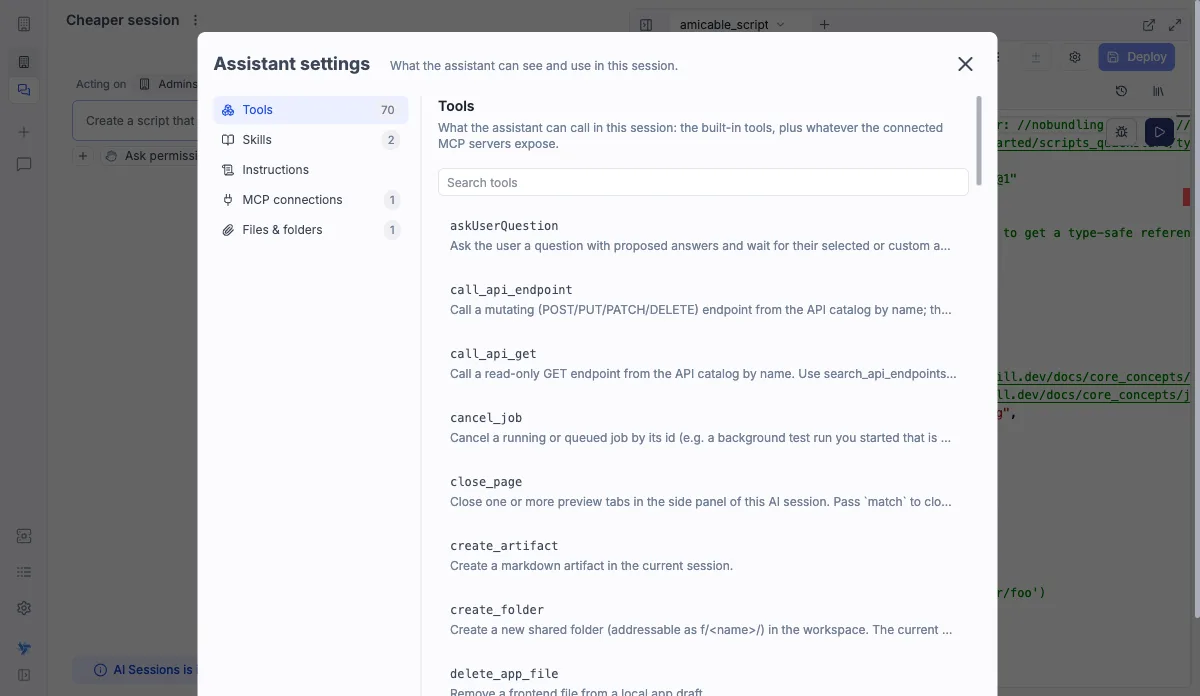
Tools
Every tool definition this chat sends with each turn, under the name and description the model sees. The search box matches on both the name and the description, and opening a row shows the full description and the arguments the tool takes. The list is read-only: the tools a chat sends follow its mode and the MCP servers turned on below, and are not switched one by one.
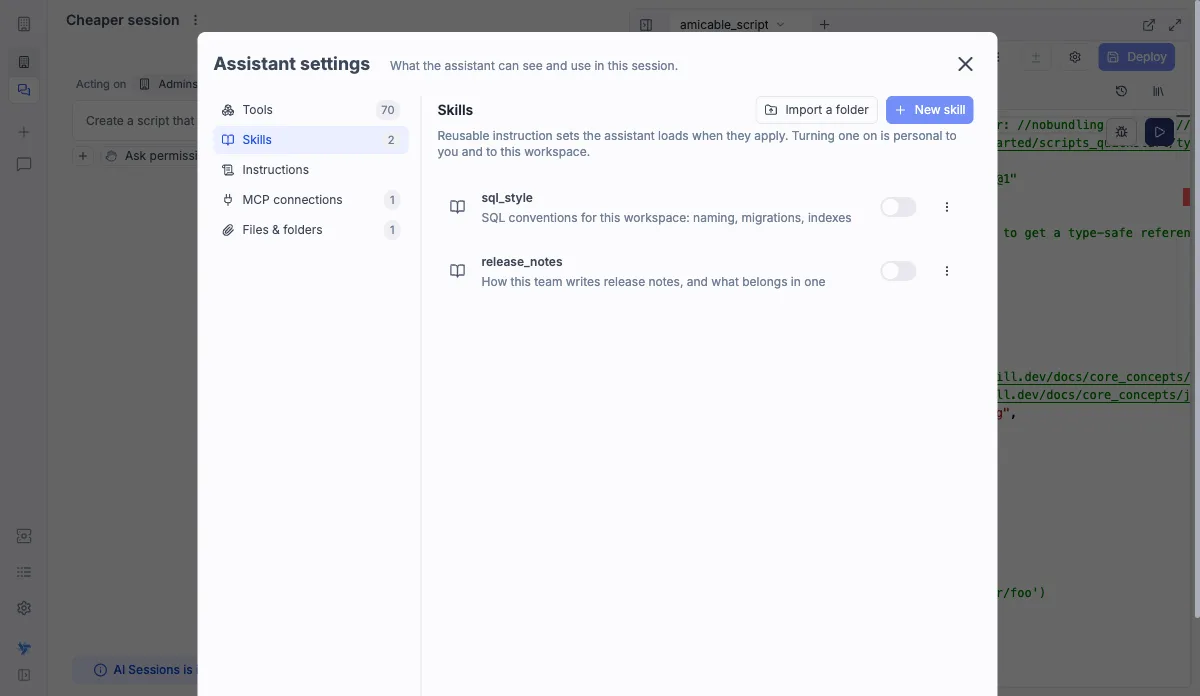
Skills
A skill is a SKILL.md file: markdown instructions for one kind of task, with a name and a description in its frontmatter, in the same format Claude skills use.
Windmill stores each one as an ai_skill resource, so a skill saved in a folder is shared with everyone who can read that folder.
The section lists every skill in the workspace, each with a switch.
Turning one on is personal to you and to that workspace: every enabled skill spends context on every turn, so being able to read a skill is not the same as using it.
The name and description of each skill you turned on go into the system prompt, and the AI loads the full body with its read_skill tool when a request matches a description.
Those skills are also the ones offered as slash commands.
"New skill" opens an editor seeded with a sample SKILL.md, and "Import a folder" picks up the SKILL.md files of a local folder of skills, up to 50 at a time and at most one folder level deep, then stages them for confirmation and flags the ones that would overwrite an existing skill.
Each row also has "Manage skill", which opens the skill rendered with an edit toggle, and "Delete", which deletes the resource.
A skill is named by the path it is saved at, which the frontmatter name only seeds; an imported skill takes the name of the folder holding its SKILL.md, and that one must be lowercase letters, digits and -, up to 64 characters.
A description is capped at 1024 characters and a body at 64 KB.
Instructions
Custom instructions added to the system prompt on top of the assistant's own, in two tabs:
- Workspace: applies to everyone in the session's workspace, and only its admins can edit it. It is read-only for a workspace that has no AI providers of its own and runs on the instance AI settings, since a workspace prompt has no effect there.
- User (you): stored in your browser, so it follows you into every workspace rather than belonging to one.
Both blocks are sent, the workspace one first, and each is capped at 5000 characters. A single Save writes whichever of the two changed. Instructions are kept per chat mode, so the ones edited here apply to session chats and not to the in-editor copilots.
MCP connections
External MCP servers this chat can call, each with a switch that, like a skill's, is personal to you and to the workspace.
When a server is on, the AI finds its tools with a search_mcp_tools tool and calls them with call_mcp_read_tool and call_mcp_write_tool, the write half asking for confirmation like any other tool that changes something.
A tool goes through the read half only when its server marks it read-only with the readOnlyHint annotation.
In plan mode the AI can still search a server and call its read-only tools, while write calls are blocked.
Its tools run under the connection's own credentials, so the chat only reaches what that account can.
"Connect a server" takes the URL of an HTTP streamable MCP server, with shortcuts for a few known ones, and either signs you in or takes a token.
The connection is saved as an mcp resource at a path you choose, with its token in a secret variable beside it.
The path decides who gets it: under u/<you> the connection is yours alone, while in a folder everyone with access to that folder can use the connection and its token.
Signing in is offered for a suggested server whose provider has an OAuth app configured by a superadmin in the instance settings; for any other server it relies on OAuth discovery, which requires Enterprise Edition, so connect those with a token on Community Edition.
Each row also has "Manage connection", which edits the underlying resource, and "Delete", which deletes it: the switch is the reversible one.
This is the opposite direction from Windmill's own MCP server, where an external client drives your workspace.
Files & folders
The files and folders linked to this chat, which the AI can open and search.
A row the AI cannot read says why: needs access, unavailable, indexing… or failed, and the header counts the usable rows against the total.
Unlinking takes the AI's access away without deleting anything, and you can attach the file again from the chat input.
Files attached to an earlier message are listed here too, but they are dropped from the chip on that message rather than from this list.
Autonomy and plan mode
The picker in the chat footer sets how much the AI does without asking. A session chat offers three postures:
- Plan (read-only): the AI can only investigate, and proposes a plan for your approval before it can change anything. See plan mode.
- Ask permission: the default in a session chat. Every tool call that writes, runs or deploys waits for your confirmation.
- Yolo (bypass permissions): tool confirmations are accepted automatically. Its tooltip lists the tools being bypassed in the current chat.
Plan mode
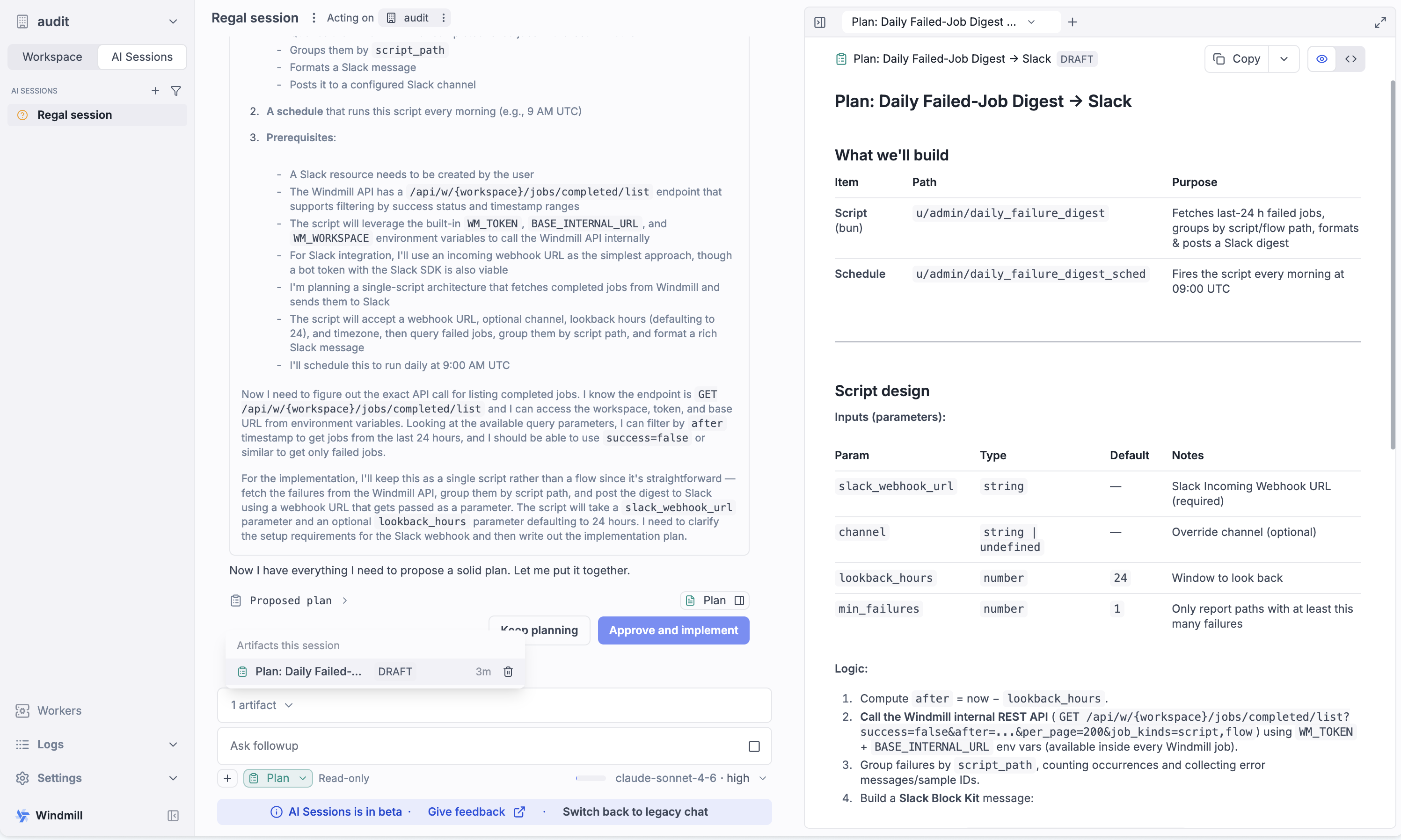
In plan mode the AI can only read, everything else is refused with a "Blocked in plan mode" row in the transcript. Then, nothing changes until you approve its plan.
You enter it by picking Plan in the autonomy picker, or by accepting when the AI asks: on a task that is open-ended, spans several items or needs a decision on the approach, it proposes planning first with a "Start planning?" card. It cannot ask while you are in Yolo: entering a read-only posture there is your own move.
Once its plan is ready, the AI hands it over for approval: the plan opens in the preview panel and the chat shows it as a card with "Approve and implement" and "Keep planning". Approving unblocks the AI and restores the exact posture you were in before, Yolo included. "Keep planning" leaves the posture on, so you can say what to change and have the plan proposed again. Leaving plan mode from the picker also ends a pending proposal without approving it, unless you switch to Yolo, which is taken as a go-ahead.
Each session has a single plan document, kept with its artifacts and pinned to the top of that list. The version you approved is the one marked as the plan, a revision you have not approved shows as a draft.
Preview panel
The right-hand panel is a tabbed view of the session's workspace. Two kinds of tabs exist:
- Editable items (scripts, flows, full-code apps) open as live editors: the same editors as the rest of Windmill, mounted in the panel and scoped to the session's workspace. When the AI edits an item, the open editor updates live, and you can edit alongside the AI; your manual edits land in the same draft.
- Workspace pages (home, runs, schedules, variables, resources, settings and more) open as regular pages. After a chat turn, only the pages affected by what the AI actually touched are refreshed: creating a schedule reloads an open schedules tab but leaves your resources tab alone.
The active tab shows a breadcrumb that doubles as a router: click a segment to jump to another page or item of the session's workspace without leaving the session. Tabs can be reordered by dragging, and the panel can be resized, collapsed or expanded to full screen. Clicking a job in a runs page opens its run detail in a new tab.
When the AI creates, edits or previews an item, the tool call in the chat shows a Preview chip with the item's icon: click it to open the item's live preview in the panel, or focus its tab if it is already open.

A pending run form can be opened in the panel the same way, which is handy for an item with many arguments. Pressing Run there turns the tab into the run page for that job.
Debugging full-code apps
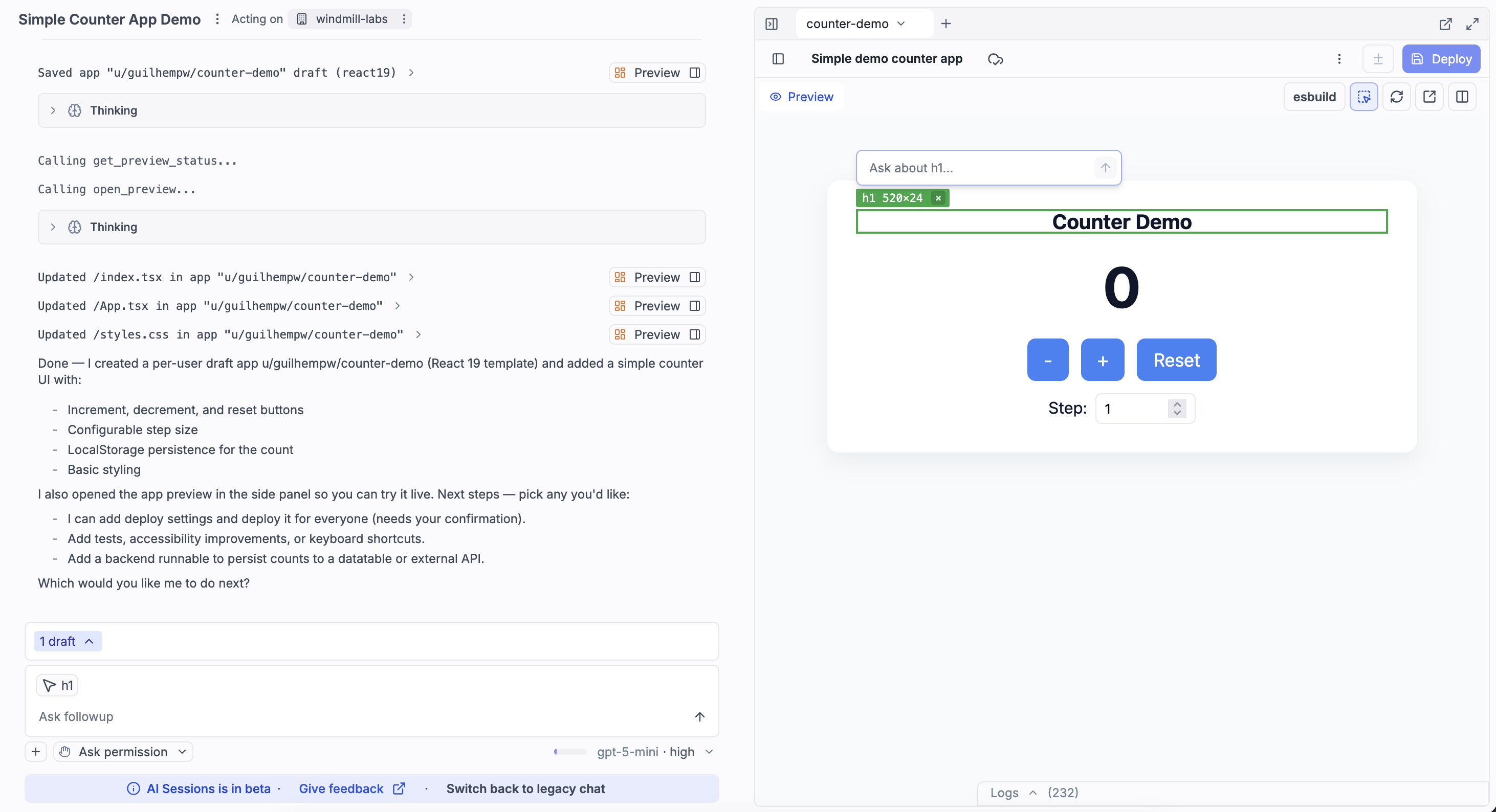
When a full-code app preview is open, the AI can inspect the running app to debug it: it reads the app's console logs and backend job runs, and can query the rendered DOM live with its search_dom and read_dom tools (by CSS selector, or the whole page body without one) to verify that an edit rendered, diagnose a blank page or answer questions about what is on screen. On Chromium-based browsers it can also take a screenshot of the preview to see the result of its own changes.
You can point the AI at specific elements with the preview inspector: click elements in the preview to attach them to your next message as selector chips. Chips and preview highlights stay in sync, several elements can be selected at once, and chips are cleared once the message is sent.
Reviewing and deploying changes
Everything the AI changes goes through draft and deploy: edits are drafts in the session's workspace, visible only to you until deployed.
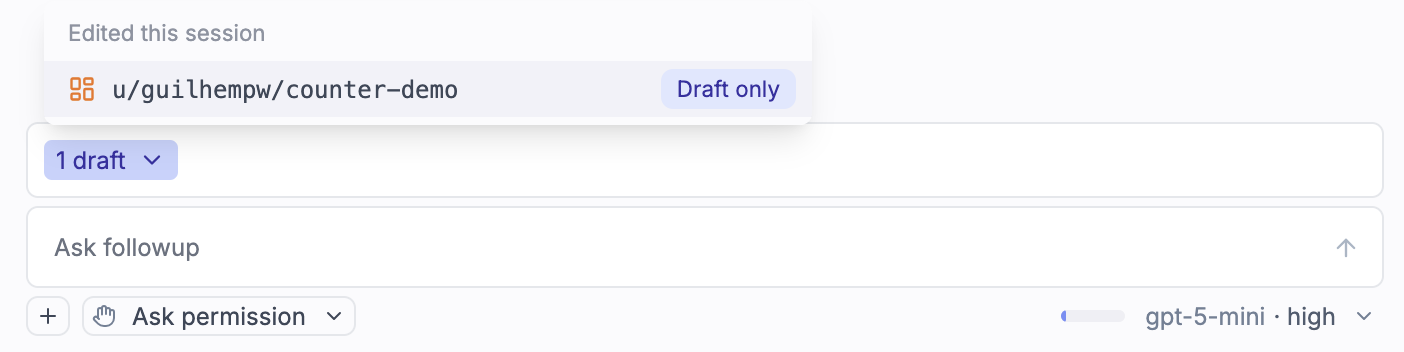
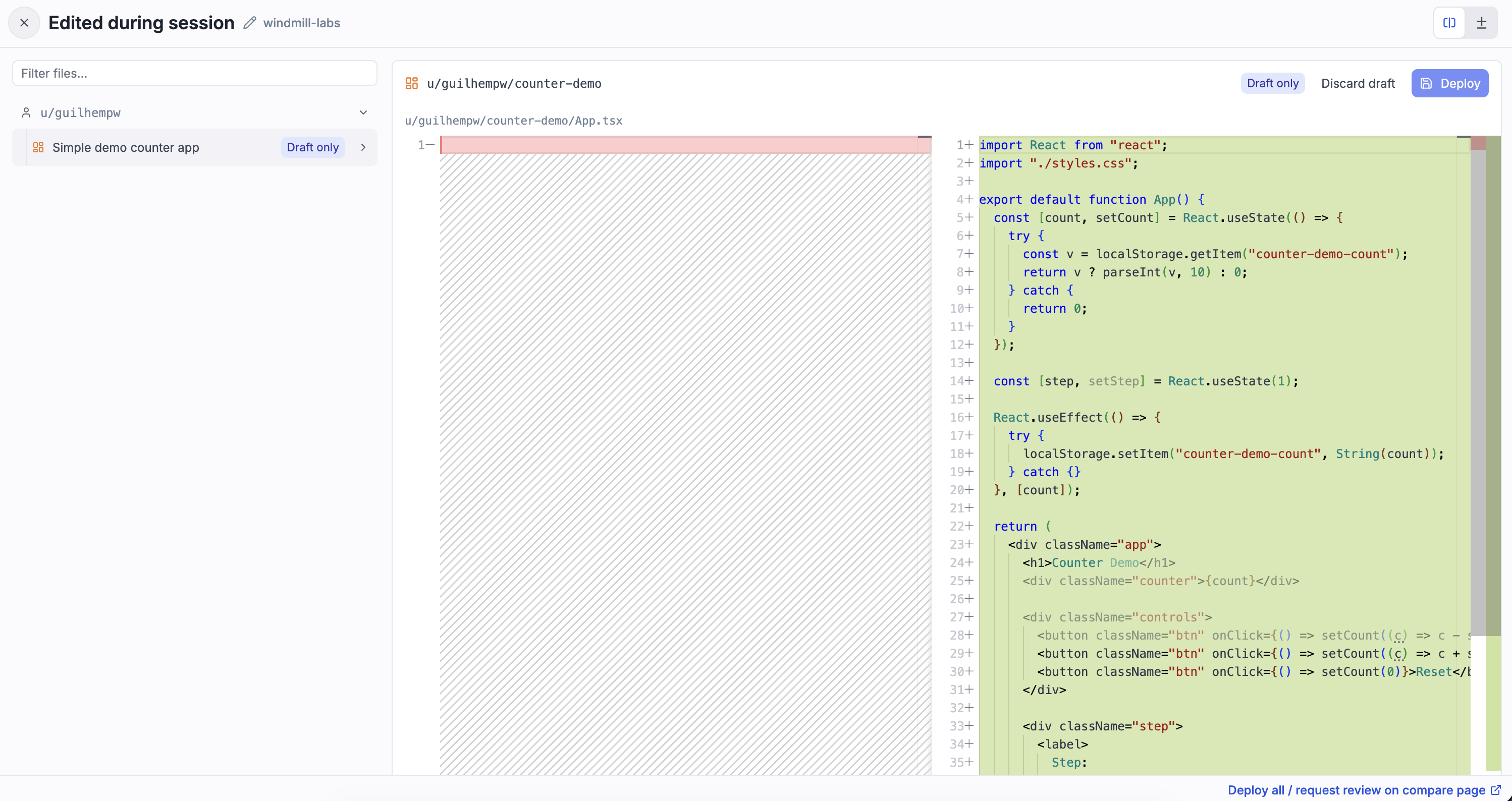
The edits bar above the chat input tracks the items changed by this chat, with a badge per state: pending draft or deployed. It only counts this conversation's changes, not every unsaved draft in the workspace. Clicking it opens the diff drawer: a file tree with a unified diff per item, where full-code apps unwrap into per-file diffs. From there you can:
- Deploy an item into the session's workspace (permission-gated).
- Discard a draft, behind a confirmation.
- Jump to the compare page to review and promote a fork's changes to its parent workspace, with the chat's changed items preselected.
If someone deployed a newer version of an item after your draft began, the drawer warns you that deploying would revert their changes.
Background jobs
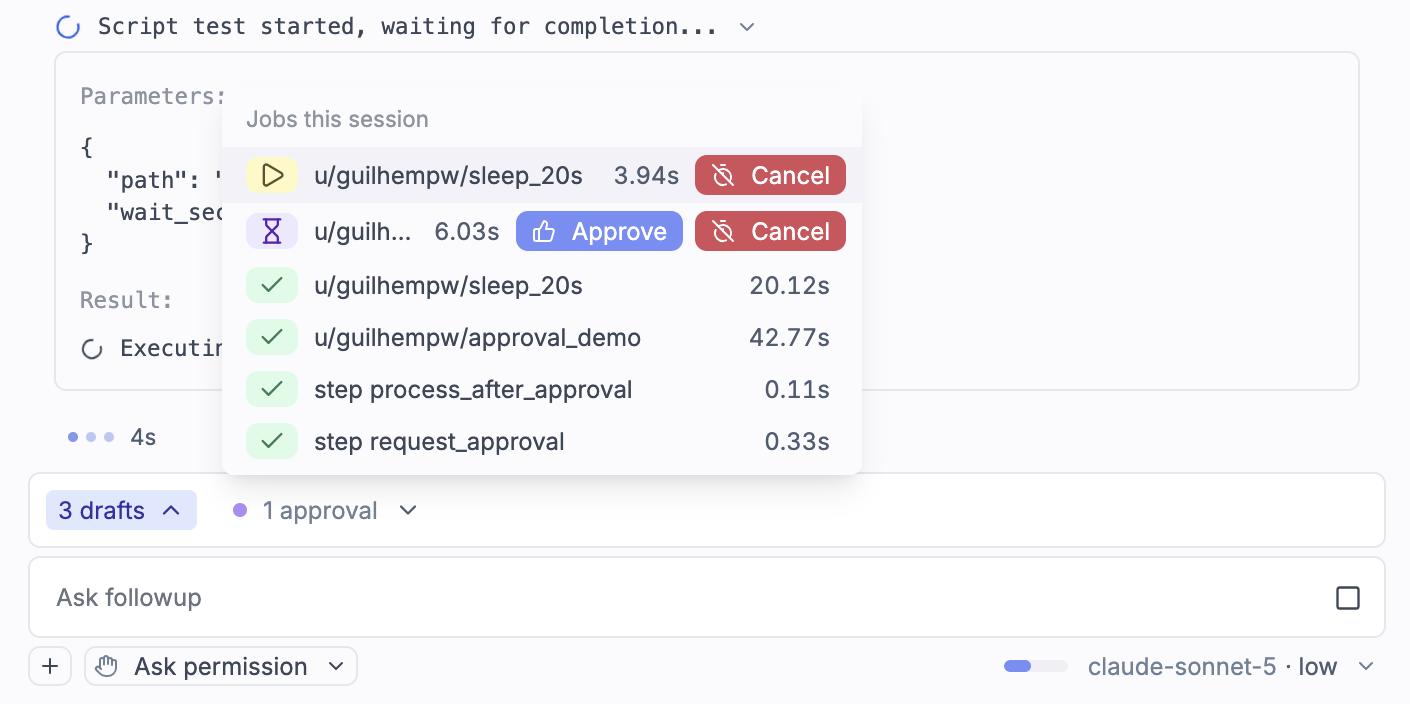
Jobs the AI starts (script tests, flow previews, SQL) do not block the conversation. A job that takes longer than a short inline wait detaches and keeps running in the background while the chat continues; when it finishes, the result is reported back to the AI.
The jobs tray next to the edits bar shows every job of the session with its live status. From the tray you can cancel a running job, open it in the preview panel, or approve a job that is suspended waiting for approval: the real resume/reject form opens in place. Background jobs survive a page reload and resume polling to completion.
Artifacts
For output that deserves a document rather than a chat reply, such as a plan, a design write-up or a spec, the AI creates artifacts: markdown documents attached to the session. Artifacts open in the preview panel with a rendered view, a view-source toggle and copy and download actions. The artifacts token above the chat input lists them, with per-row open and delete.
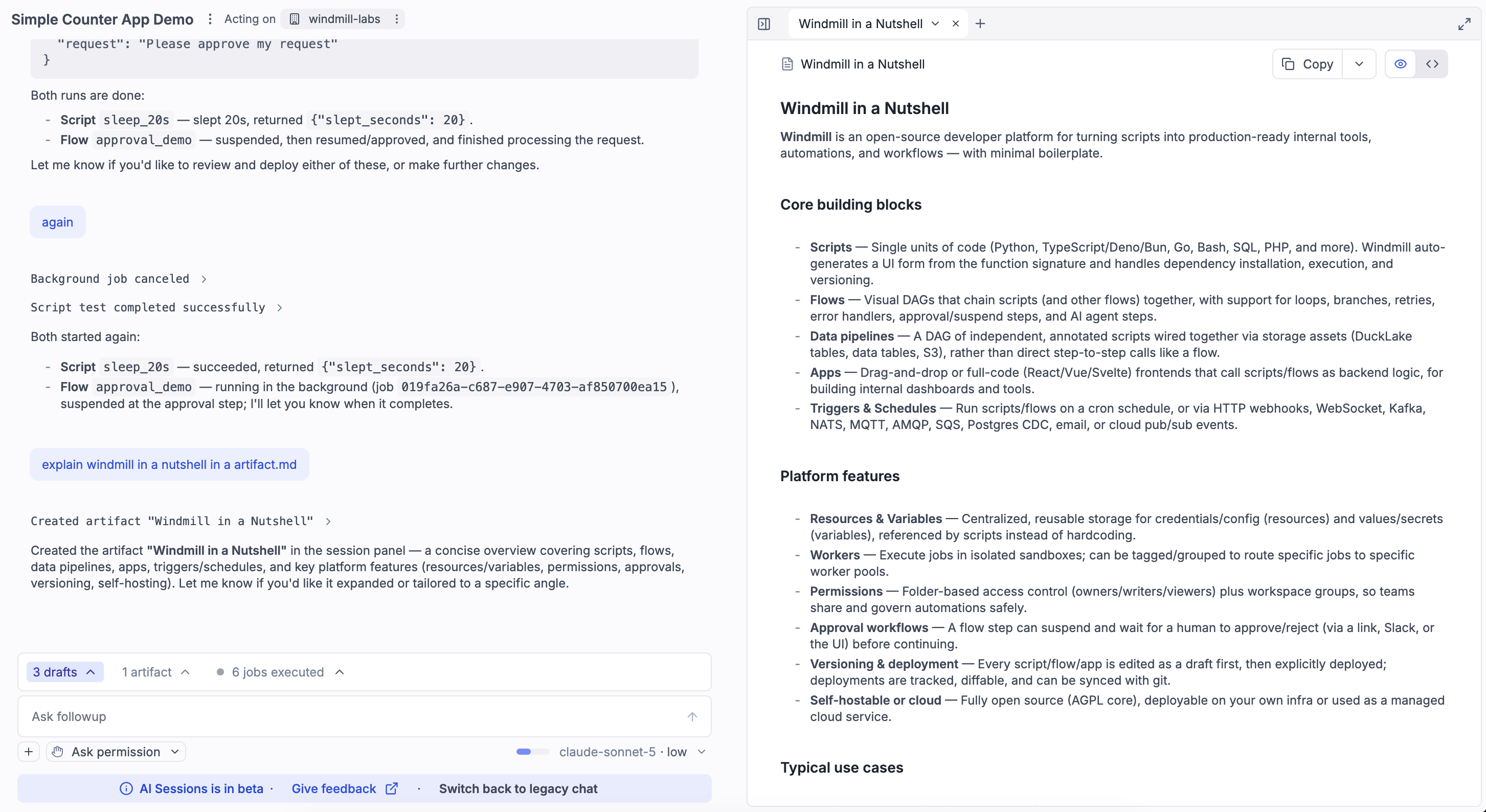
Ask for a change and the AI revises the artifact in place instead of creating a second copy. Every revision is saved as a version with a short note describing what changed. Once an artifact has more than one version, a picker in the viewer header lets you read an earlier one: a banner marks the view as stale and takes you back to the latest. The AI can read past versions too, so you can ask it to restore earlier wording rather than have it rewrite from memory. History is bounded, keeping up to 20 versions per artifact and fewer for large documents, so the oldest revisions of a heavily edited document eventually drop off.
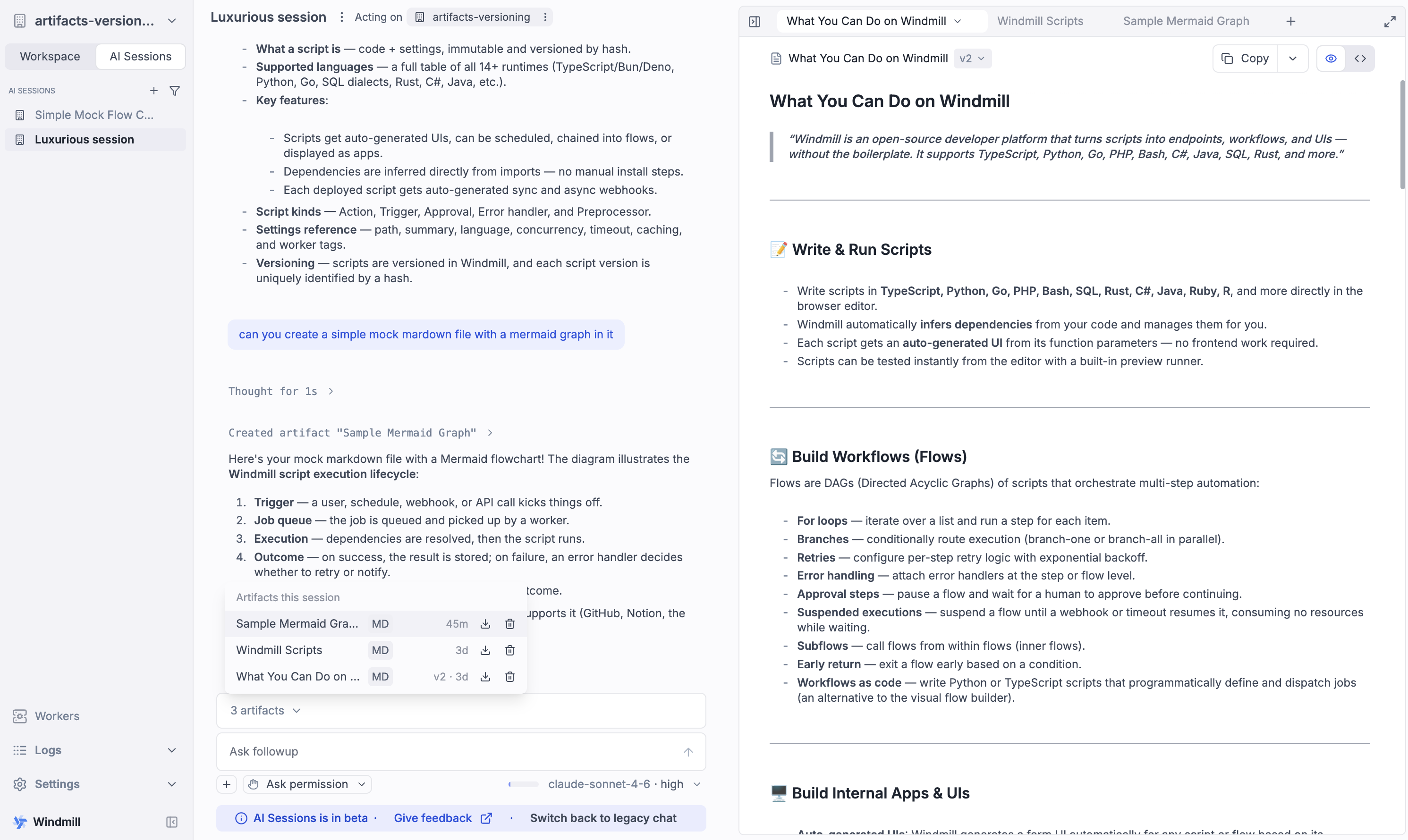
Artifacts are stored with the session and deleted with it. A single artifact is capped at 256 KB, so ask for a long document to be split rather than written as one file.
Sessions, workspaces and forks
A session can be archived or deleted at any time, from the sidebar or the session itself. Archiving is reversible: an archived session keeps its conversation and can be unarchived later. When the session runs on a fork created for it, archiving or deleting it also offers to archive or delete the fork along with it; persistent dev workspaces are never offered for deletion.
The lifecycle also works the other way, since a session belongs to the workspace it runs in: if the session's fork or workspace is deleted (including from another device), the session is automatically deleted with it; archiving the workspace archives its sessions, and unarchiving it restores the sessions that were archived with it.
The AI knows where it operates: its system prompt states whether the session runs in an ephemeral fork, a dev workspace or the live workspace, so it presents changes made in a fork as pending promotion rather than live, and deploys in a dev workspace as landing in dev.
Forks make sessions safe to experiment with: the AI works on an isolated copy, and its changes only reach the parent workspace through the compare page. On Community Edition an instance is limited to 3 workspaces, which caps how many forks you can create; Enterprise Edition lifts this limit.
Creating a new fork for each session is a good default. Every conversation gets its own isolated copy to experiment in, and promoting its changes goes through the same Compare & Deploy review as the dev to prod workflow, so nothing reaches the parent workspace without a review you already know. To combine forks with roles, review and dedicated workers for business teams, see let business teams build with AI safely.
Sessions are stored locally in your browser, per user. They are not synced across devices or browsers: the conversation, draft sessions, artifacts and attached images stay on the machine where you created them. The drafts the AI creates, however, are regular workspace drafts stored server-side.