Dev workspaces
A dev workspace is a persistent workspace fork that holds the same code as another workspace but a different environment (its own resource and variable values). It is paired with a "prod" workspace (labelled the root workspace in the dev-workspace UI): the dev workspace is the standing editable environment, and the prod workspace can be locked so that changes only reach it through promotion.
This lets a team edit safely in dev and keep prod stable, without the throwaway lifecycle of an ordinary fork.
Dev workspaces build on workspace forks, which are available on all self-hosted editions but count toward the global 3-workspace limit on Community Edition. Locking the prod workspace reuses protection rulesets, an Enterprise Edition feature.
Dev workspace vs. ordinary fork
A dev workspace is a special kind of fork. Compared to an ordinary fork:
- Persistent: it is the team's standing editable environment, not a short-lived branch you create, merge, and delete.
- No
wm-fork-prefix: a dev workspace keeps a plain, git-branch-safe workspace ID that you choose, instead of the auto-generatedwm-fork-ID. An ordinary fork is still prefixed. - One per workspace, chainable: a workspace has at most one active dev workspace, but a dev workspace can itself be paired with one - see chained dev workspaces.
- Its own job tags: because its id is one you chose,
$workspacein a job tag resolves to the dev workspace itself, so it can have its own workers. An ordinary fork resolves to its nearest named ancestor instead. - Identified as dev: dev workspaces show a badge carrying their environment label, sort ahead of ordinary forks in the workspace menu, auto-expand under their prod workspace, and are labelled "<Label> workspace of <prod>".
Promotion is reviewed, never automatic: through the Compare & Deploy flow, or as per-item pull requests with Promote to prod via Git. Auto-sync from dev to prod is not available.
Environment labels
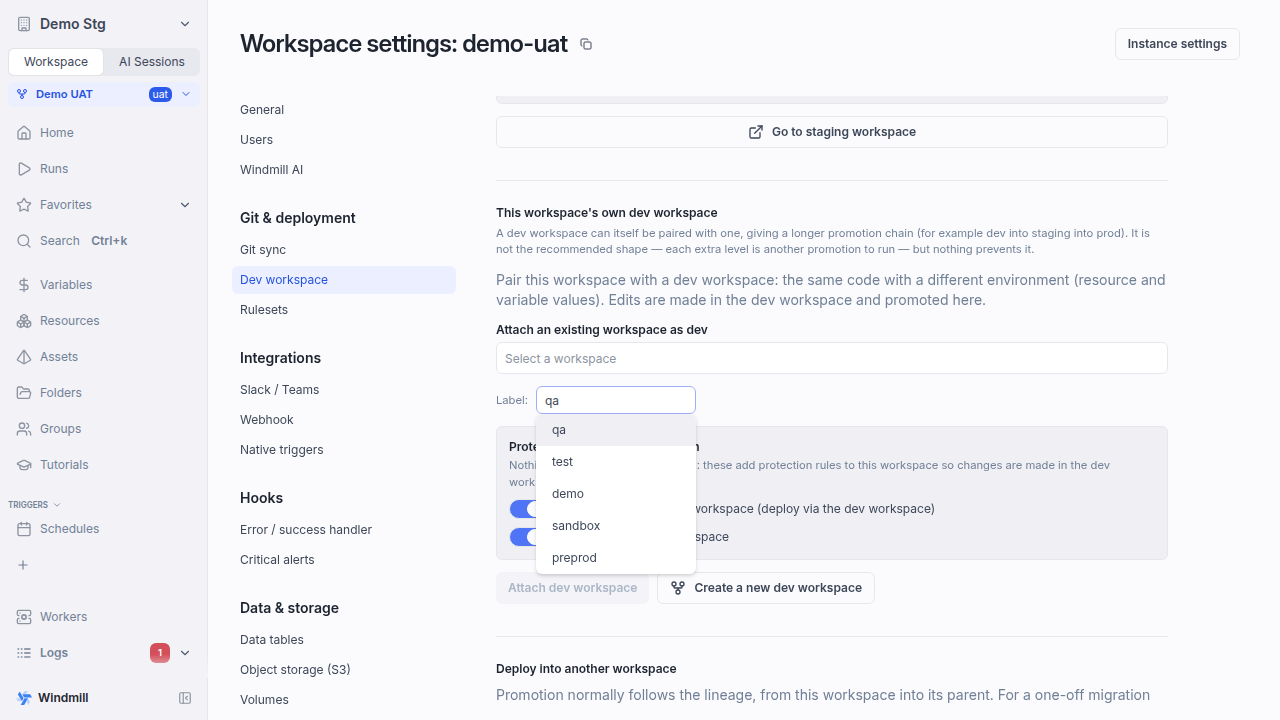
A dev workspace carries an environment label, picked from a fixed list ordered dev to prod: dev (the default), qa, test, uat, staging, demo, sandbox, preprod. Choose it when you create or attach the dev workspace; it is fixed afterwards. The Dev workspace settings tab shows the current label, but does not let you change it.
The label decides three things:
- The badge on the workspace: the label itself, except
staging, which shows asstg. - The wording that names the workspace: "This is a uat workspace paired with staging workspace demo-stg".
- The git branch the workspace deploys to when git sync is configured: the label verbatim (
uat), instead of thewm-fork/...branch an ordinary fork gets. With Promote to prod via Git enabled, deploys go to per-itemwm_deploy/**branches instead.
Nothing else follows from the label: locking, promotion and Compare & Deploy behave the same whichever one you pick.
The list is fixed rather than free text because the label doubles as a branch name. Every entry is a usable single-segment branch, none is a plausible default branch (main, master), and none collides with the wm-fork/** and wm_deploy/** branches git sync already writes. For the same reason a label is refused when a git sync repository in the chain tracks a branch of that name, or a branch nested under it (label uat against a tracked uat/foo, which git cannot hold at the same time): every deploy from the dev workspace would fail.
Chained dev workspaces
A dev workspace can itself be paired with a dev workspace, giving a promotion chain longer than a single pair - for example demo-uat (uat) into demo-stg (staging) into demo. This is not the recommended shape: promotion runs one level at a time, so each extra level is another Compare & Deploy to run. Keep the chain no longer than your environments require.
Every dev workspace in a chain must carry a distinct label. A chain shares its git sync repositories, so two dev workspaces on the same label would deploy to the same branch and overwrite each other. The label picker therefore only offers the labels still free in the chain, and once all eight are taken the Dev workspace tab drops the attach form and points you at the existing chain instead. Attaching a workspace that already has dev workspaces of its own brings them into the chain, so the attach is refused when one of them holds a label the chain would then use twice.
Fork nesting is capped independently of the labels: the chain cannot go deeper than MAX_FORK_DEPTH levels below the root workspace (5 by default).
Creating a dev workspace
Create a dev workspace from the fork creation form (workspace menu → Fork current workspace, or Workspace settings → Dev workspace → Create a new dev workspace). Creating a dev workspace requires being an admin of the workspace you are forking.
In the fork form:
- Enable the Persistent dev workspace toggle ("Dev workspace"). This creates the fork as a standing dev workspace with no
wm-fork-prefix. - Optionally pick another environment label. Changing it also updates the suggested workspace name, which is prefilled as
<root>-<badge>(demo-stgforstaging). - Set the Workspace ID (shown under the fork name). It must be git-branch-safe.
- Optionally configure the Protect <root> options to lock the prod workspace (see Locking the prod workspace):
- Block direct edits (deploy via the dev workspace)
- Prevent forking
- Optionally enable Copy members to copy the source workspace's members (and their roles, including service-account type) into the dev workspace, so the whole team can work in it. This is only offered when creating a dev workspace, not when attaching an existing one. With it off, the dev workspace still starts with the parent's admins and developers if the parent has Add admins and developers to new forks enabled.
Pairing an existing workspace as dev
If you already have a workspace you want to use as the dev environment, attach it from Workspace settings → Dev workspace. Besides pairing, this tab holds everything about where the workspace deploys: on a fork or a dev workspace it also carries the filters choosing which items the deployment UI may promote into the parent (previously a separate "Deployment UI" tab). On any workspace, it holds a Merge into another workspace button for a one-off deploy outside the lineage, and the Deploy to another instance target for deploying to a workspace on another Windmill instance.
Attaching is also how you make two pre-existing workspaces of the same instance deploy into one another: on one instance the lineage is the only deployment relationship, so there is nowhere in the workspace settings to point a standalone workspace at another workspace of that instance.
Attach
- On the prod workspace, open Workspace settings → Dev workspace.
- Under Attach an existing workspace as dev, select a workspace. You can attach a standalone workspace or an existing fork of this same workspace (a fork parented to a different workspace cannot be attached).
- Optionally set the environment label. It defaults to the first one still free in the chain.
- Optionally enable the lock toggles (Block direct edits in this workspace and Prevent forking this workspace).
- Click Attach dev workspace.
Attaching requires being an admin of both the prod workspace and the workspace being attached (or a superadmin). A candidate that already has dev workspaces of its own keeps them: they join the chain with their labels.
This is also how you restore a staging/prod pair that used the pre-1.776.0 Deployment UI target setting and did not convert on upgrade - see upgrading from the deploy target setting.
A workspace that is itself a dev workspace shows the same form under This workspace's own dev workspace, at the bottom of the tab - see chained dev workspaces.
Detach
From the same tab, click Detach to break the pairing. Detaching removes the prod lock that was applied when the pairing was created (see below). A protection rule you added manually is left in place.
Locking the prod workspace
When you pair a dev workspace, you can lock the prod workspace so changes can only land through promotion. The lock reuses protection rulesets under a reserved rule named dev_workspace_lock, applied automatically on pairing and removed when you detach, delete, or archive the dev workspace.
The two lock options map to the existing protection rules:
- Block direct edits uses Disable direct deployment so items cannot be deployed straight to prod.
- Prevent forking uses Disable workspace forking so the only editable copy stays the canonical dev workspace.
On a locked prod workspace, the Edit action on a script, flow, or app is redirected into the dev workspace: the affordance reads "Edit in <dev>" and opens the item's page in the dev workspace instead of the prod editor. Workspace admins keep their usual bypass: a user who can bypass the deploy rule still sees the normal editor.
Promoting changes to prod
Promotion is manual and uses the existing fork promotion flow. From the dev workspace, open the home page banner or the Compare & Deploy page to review the diff with the prod workspace and deploy the selected items. This is the same flow as merging a workspace fork.
If the workspaces are git-synced, changes can instead be promoted as per-item pull requests - see Promote to prod via Git.
Promote to prod via Git
If the prod workspace uses git sync, its dev workspace can promote changes through per-item pull requests instead of the Compare & Deploy flow. This requires an Enterprise Edition plan.
A dev workspace created by forking a git-synced prod inherits the prod workspace's repository. On the dev workspace, Workspace settings → Git sync shows that inherited repository with a Promote to prod via Git toggle:
- Off (default): deploys in the dev workspace commit to the branch named after its environment label.
- On: each deploy creates a branch named
wm_deploy/<dev-workspace-id>/<type>/<path>off the branch tracked by the prod workspace, to be reviewed and merged as a pull request. Once merged, the prod workspace's CI/CD sync reflects the change in the prod workspace. This is the same Git Promotion workflow a root workspace uses, except there is no separate promotion repository to configure: promotion reuses the single inherited repository.
With the toggle on:
- One pull request per folder groups a folder's items into a single branch (and pull request) instead of one per item.
- On a repository authenticated with the GitHub App, an Open a pull request for each deploy branch sub-toggle appears: Windmill opens the pull request automatically after each deploy, with no CI action or webhook needed. On other repositories, set up the GitHub Action that opens a pull request when a
wm_deploy/**branch is pushed.
While promotion is on, deploys also keep updating the dev workspace's environment-label branch, so it keeps tracking the workspace and forks of the dev workspace keep working against it.
Promotion requires the dev workspace to use the same repository and branch as its prod workspace. A dev workspace created by forking inherits them and always qualifies; an attached dev workspace whose repository points at a different URL or branch cannot enable the toggle. Enabling promotion is also rejected if the repository pins an older version of the git sync script - update the pinned script first.
Per-environment resources and variables
A dev and a prod workspace usually need different values for the same resource or variable (for example, a database URL or an API key). You can mark a resource or variable as workspace-specific so each environment keeps its own value.
A workspace-specific item is excluded from the diff entirely, so promoting code never overwrites the per-environment value on either side.
Mark an item workspace-specific
On the Compare & Deploy page, use Make workspace specific on a resource or variable diff row. Marking an item:
- Keeps its value per environment and removes it from the diff.
- Is authorized like editing the item (you must be an owner, folder writer, or item writer, and pass the workspace's deploy rules).
To revert, open the Workspace-specific items panel and choose Make shared. The item re-enters the diff and is compared again.
Seed a missing copy with "Create in <other>"
When a workspace-specific item exists on only one side, the Workspace-specific items panel shows a Create in <other> action to seed a copy into the other environment. This action:
- Is strictly create-only. It re-checks whether the target already exists and never overwrites it; if the target is already there, it is marked workspace-specific instead.
- Copies the current value, including secrets, authorized against the target workspace.
- For a resource, also seeds any linked
$var:variables the target is missing, so references resolve and secrets stay per environment. - Shows a confirmation before running.
AI chat sessions
AI sessions are aware of dev workspaces. The session "Acting on" picker shows the "dev" badge on dev workspaces. A new session defaults to the workspace you are currently in, and steers to the dev workspace only when you are in a prod workspace you cannot deploy to (read from the prod workspace's own protection rules, with admin bypass recognized).
The "Create new fork" entry defaults to Fork from <dev>; an admin-only Fork from <root> entry appears when you can fork the root workspace. Options you cannot use are hidden, and persistent dev workspaces are never offered for deletion.
The session's system prompt also tells the AI when it operates in a dev workspace rather than an ephemeral fork or the live workspace, so it presents deploys as landing in dev, pending promotion to prod - see AI sessions.
Lifecycle and limitations
- Renaming a dev workspace keeps it the canonical dev workspace, and renaming the prod (root) workspace updates the dev workspace's promotion target to follow.
- Deleting or archiving an attached dev workspace requires being an admin of the prod workspace; it clears the prod lock. Deleting a prod workspace that still has a dev workspace is blocked - detach first. A chain is torn down bottom-up for the same reason: archiving a dev workspace, or detaching one that would revert to a throwaway fork, is refused while it still has a dev workspace of its own.
- A prod admin who still has write access to a locked prod sees the normal editor (rather than the "Edit in <dev>" redirect) and is stopped by the backend deploy block instead.
- Nothing writes straight to prod without review: promotion goes through the Compare & Deploy diff or a pull request. Special handling of triggers and schedules is not part of this workflow either - triggers are not copied into a fork on creation, see triggers and schedules.
- Like any fork, a dev workspace gets an isolated DuckLake data environment per lake by default, with reads deferred to the prod workspace's data until the dev workspace materializes a table itself - see fork data environments for DuckLake.